iGo With My iPad

Using our iPads – At work, at home and at play

Browsing Posts published by admin

For some, VFX Studio is a serious tool, for the rest of us it’s just a whole lot of fun! And, being free today only means it’s a no-brainer to grab and play. Being a Universal app means the fun is on the iPad and your iPhone too.

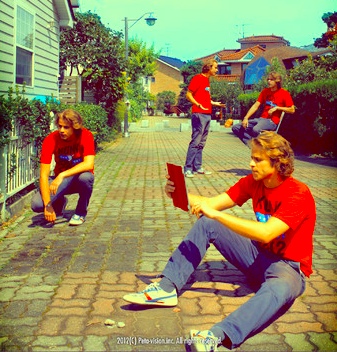
The VFX Studio app offers a lot of features that you can dive as deep as you want to, or just stay at the high level. Here is a quick shot of a quiet little dock… the boat sits in shark infested waters with it’s bullet holes down the side, a person on the dock has light saber in hand getting ready for the lion coming down the ramp and the little cafe off the building is on fire. A great example of a non-corportate creation, but that doesn’t mean yours have to be so light hearted.

There are several screens worth of types of things you can add to your image. Below this group is more things like smoke and weather.

Each of the groups of items in VFX Studio has many variations on the item. Animals has several screens worth of different animals, while ‘bullet holes’ has hole images through many different kinds of materials. After you select, the item can be twisted and resized to match your image’s needs.

After you have your image imported (or taken with your iPad2/New iPad camera), access to the list of items to place on the photo is through the lower left corner ‘edit’ icon. Choose a group, choose and item and it appears on the screen. You can drag/drop and resize using two fingers. We recommend placing first, then resize, small items are hard to grab again. Once placed, the lower right corner button offers access to VFX Studio’s tuning features to alter the inserted graphic to work better with your image. Flip and flop are simple buttons, while ‘Adjust’ takes you to sliders for fine tuning color, shade, saturation and the like. When your done, save to your iPad’s Photo Library and share.

Share

The free Cloud storage providers has been increased by one today with the Microsoft SkyDrive. The news wasn’t a surprise to us, we have been following SkyDrive for a while, but we were excited to see the iPad app get upgraded to 2.0! All of Microsoft’s Cloud storage competitors offer similar services but each have their own unique features that makes them special to different users. In our office, we have SkyDrive fans, DropBox, Box.net and iCloud fans too. It’s a matter of finding what is important to how you need to stores and access your files.

For the SkyDrive 2.0 free iPad app, full access to your files is made pretty easy with a UI that makes sense. Microsoft allows you to store just about (have not found a file type it hasn’t accepted) file format type in your free 7 gigs of space. Images upload very quickly, and sharing is easy. ‘Open-In’ is also supported to you can select a file and open with your favorite iPad app like a reader or text editor.

Of course, like any Cloud service, you need to sign up for a free SkyDrive account over on Microsoft’s Cloud page. Below if a quick grab of the comparison chart to see if what you need is provided.

Share

We have gone into quite a bit of detail around advanced photo editing tools on the iPad. There are of course simple tools to apply a effect filter to a full pictures but beyond that usually means tools that take a while to learn and get good with.

An app that on the surface appeared too simple has turned out to be a great find, letting us to pinpoint tuning of images without complicated steps. The app, Paint FX Photo Effects Editor (say that 10 times fast), has both the full image effects and pin point editing capabilities.

Paint FX Photo Effects Editor has a group of filters/effects built in to use. Select the color icon along the top to show the options. Without over complicating the application of the filters, the app lets you apply more than one effect by using Layers. Choose a effect, apply it to tune the areas of the photo, select ‘layer’, then another effect to do more tuning.

Just under the photo effect options is two buttons that allow for the effect to be applied to the full image or to have the effect applied only where you brush over.

The ‘finger’ icon’s name changes to the filter being applied. We chose the the Brightness effect and ‘painted’ in the trees on the right to brighten and make them stand out more. Paint FX Photo’s effect precision of application means you could make an area of a photo black and white, make an area really pop, maybe even change the effect for an area so it looks hand drawn. Since it is easy to apply/undo, you can work your way through a lot of tuning options quicker than the more expensive options.

continue reading…

Share

We have covered Zinio with it’s readily available list of magazines you can read on the iPad. While they are electronic image versions of the print magazine, they are nice for saving a tree and getting quickly without postal delivery damage. For a most ‘interactive’ approach, we covered our move to the Newsstand version of Wired, Wired UK and Fast Company. All of these magazines have more actions in articles with hot spots, 3D images, movies and scrollable text rather than just being a ‘page turner’. These are produced by Conde Nast.

Many other print magazines available in the Newsstand iPad app are being assembled and distributed by PressRun. They have a slightly different interface but compatible features. Once you install the ‘free’ app, you can choose to purchase a single or yearly (auto renewed) subscription. Some come with free iPad content if you already subscribe to the print version and link the two together.

We were excited to see Stuff finally jump on board with iPad distribution. The content is in the digital tech area and fits nicely for the Wired/Fast Company subscribers. The navigation is slightly different between the two magazine publishing systems. For the PressRun’s version of Stuff, the navigation slider is at the top in a very slim line, better as a progress bar then to actually use to move through the magazine. Below the slider is quick links to the top areas of the magazine. Most are lists of content within them that contain hot spots to jump directly to articles.

Below, you can see the ‘+’ circles letting you know that there is an action that can happen by touching that area of the page. In this case, it changes the description text on the page, on other pages you will jump to another part of the magazine. The graphic showing the arrowed circle around an object will take you to the back side of the electronic device being shown. It’s a cool interaction that feels better than flipping to another page. We need to get a copy of this same magazine in print to see if all of the enhanced views are printed too or only in the iPad copy.

The interactive elements of Stuff continue with a magnifying glass for a full screen view of the art. That feature is more important for some images with fine detail. Below on the left is conversation bubbles between two individuals that you sweep through to see point/counterpoint discussion. In the lower right is a live stream feed from Twitter, which would only work when you are reading Stuff on an iPad connected to the internet. The content is available ‘offline’ but some of the interactive elements require being online.

In this article page instance, Stuff has several text areas to scroll through to read without flipping the page. As you can see at the bottom of the page, this is page 3 of 15 pages. The arrow down is letting you know the next page is below this one. Rather than having an endless scrolling up/down, after a few pages the arrow will be pointed to the right to move across to a new series of pages. It makes for less top level pages to sweep through.

continue reading…

Share

Sitting in traffic may appear to be a good time to pick up the iPad and do some browsing, for fun and work. But, it isn’t really a good idea to take your eyes off the road even when at a stand still on the road in traffic.

Luckily, the iPad can now help you not get in those traffic jams in the first place. Before you head out, take a quick look at the traffic cams on the path you will be taking to see if things are moving along or stop-n-go. The ability has been on the iPhone for year, not the MultiCam app has gone universal. Buy a license and you can use the capability on both your iPad and iPhone at no extra charge. Actually for charges, there is no ongoing cam or subscription charges, just the cost of the app in the start. It is also handy if the news reports something in an area to see for yourself without the need to wait for the next news update.

MultiCam covers 56 cities from around the world. Well, two of those ‘cities’ are actually water Ferries and one city Dallas has been removed at the request of the City Officials.

Launching the app, you have a long list of available cams broken down by major roadways. You can swipe up/down to scroll through the options, tap one to be taken to the street cam at that location. No, you don’t get to take control of the cam and turn or zoom, that would be cool though wouldn’t it?!

When viewing a individual cam, you can change to the next/previous cam by using the buttons by the same name at the bottom of the MultiCam screen. To remove the need of going through every camera on a particular road, add individual cams to the Favorite area to get access to just the cams you need. All cams are still available via the front page.

Share

Oh, the fun of the old classic instruments of the 50′s!

Today’s post is from the group of coworkers that love the retro look and feel. They talk about Mad Men over Monday morning coffee, they dress with classic colorful box designs, they have interesting lamps and while they couches look cool and are great for sleeping on, you tend to slide down a bit when trying to sit on them. They don’t think of themselves as ‘vintage’, it is more about being ‘retro’.

So, when when AGLogic rolled out their Peepometer iPad Weather app, all anyone wanted to do was check the weather.

The information provided by the multi screen tools are found in the higher end Weather apps for the iPad. It just happens that Peepometer wraps the information in a series of gauges that are more fun than cold line graphs and simple little puffy cloud icons.

Don’t jump to the conclusion that the Peepometer ’1000′ only gives you the information that your dad’s wall dial gave. The app still provides all the needed weather related data you may need, just wrapped in a look that makes it fun to have open on the desk when the iPad is idle.

• Peep Scope
• Dial-a-Forecast
• Temperature Gauge
• Barometer
• Wind Speed and Direction Gauge
• Imagery Scope (including animated radar loops where available)
• Compass
• Clock

Yes, even weather radar, while not available in color in the 50′s can be enjoyed now with a bit of retro class through Peepometer.

Share

There are painting and drawing apps that include a variety of brushes, pens or pencil tips. Some offer each option for an additional charge. Others, offers a list of pen divided down by pen colors. In the case of MyBrushes, you have 100 different drawing and painting tip styles to choose from, and an almost unlimited number of color options. To make things really exciting, MyBrushes for the iPad is in the iTunes store for FREE right now. The page doesn’t show how long the offer is going to be available. Interesting, there is no ‘in-app’ upgrades available either so the Free special is the full feature set! This is not a universal app, there is separate versions for the iPad and iPhone, with only the full iPad version being offered at no charge.

When you launch MyBrushes, you start with a page to access your saved work (Gallery), a new work space or the Help page. You may want to take a look at the ‘Help’ page first things since what appears to be a simple app actually has a lot of fine tuning options.

Starting with a clean piece of white screen, the pen features are all around the edges. Down the left is the sliders to adjust the color of ink. The lower left corner is undo/redo with 10 steps in memory. The four sliders let you set the width, strength and transparency of your drawn lines. The pens/pencils across the bottom are for your favorite or most-often-used styles that you can populate. The ‘All’ button is for looking at those 100 MyBrushes tip styles. We found that if you exit the page without saving your work, it is lost so use those buttons on the right to save and save often! The arrow at the top right corner hides the row of new/open/save buttons.

When you select the MyBrushes ‘All’ button, a screen of drawing and painting tips slides up for you to choose from. We were supposed to be working today against a big deadline so we can’t say we tested ‘all’ of the options. It was fun to see what creative folks can do when so many styles are at their finger tip. Notice the tip choices start getting less basic as you go lower on the page. Select one and tap the ‘OK’ button to use it. There is also a button in the upper right corner to set up your quick access ‘favorites’ area on the canvas page.

Share

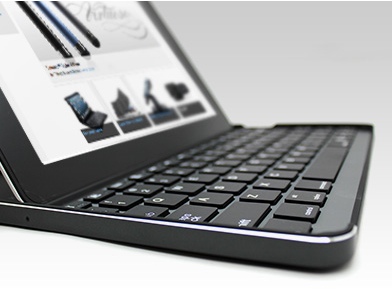
At work and at home, when it comes time to entering a lot of text into our iPads, we turn to our Bluetooth keyboards. The keyboards sit on our desks and on the kitchen counter. They are small enough to carry with us into meetings or be pushed out of the way when we need more counter room.

The iPad and keyboard do a nice handshake on their own after the first time you tell the two to play together. When you carry the iPad far enough away from the keyboard the the Bluetooth wireless signal can’t reach they disconnect without any need for you to do anything. When the get close enough, they join together again.

The downside to that automation of the two joining in the background is that both system’s Bluetooth is always keeping an eye out for each other as well as other Bluetooth devices to join up with. To save on the battery when moving around a lot, simply go to the ‘Settings’ icon on the iPad’s launcher, choose General, choose Bluetooth and slide the switch to ‘off’. When your at the keyboard again, repeat the steps to turn the Bluetooth back on.

Or, you can grab a new little 99 cent universal app called Bluetooth OnOff. The app is best to be moved to a screen you can access  quickly. The app is built to, as it’s name says, turn on/off your iPad’s Bluetooth. Tap the icon, slide the switch and the Bluetooth is turned on or off. That is three taps saved.

If you want to cut the on/off process down to one tap, set Bluetooth OnOff. to do it’s action on launch. This way, when you tap the app’s icon, it will flip the Bluetooth to the opposite. Remember, you can always see if your iPad’s Bluetooth is on/off via the little icon in the upper right corner of the screen.

To set Bluetooth OnOff. to do the change via one tap. Launch the iPad’s ‘Settings’ app, scroll down to the app OnOff, select it and slide the switch to ‘On’. That’s it.

It is nice that Bluetooth OnOff. is Universal so we can install it on our iPhone’s too. There is even a bigger impact for the iPhone since there is no need to have the Bluetooth on when not around the handsfree speaker phone. One icon tap on/off is much easier.

As a bonus, though we have yet to try it, you can chat with other iPad/iPhone devices via the app’s Chat feature… the big button at the bottom of screen.

Share

Part of what the iPad shows us very early on was that it’s all about the visual sweep. The device gave us the chance to rethink how information was being presented. A few early adopters changed everything by taking a whole new look at the physical world and didn’t just reproduce actions we did with pen and paper. News is an important area, which has had the most (in our opinion) different User Interface attempts to find what feels right for iPad users.

An app like Read It Later brought us a whole new ability with it’s automated method to grab a whole Web page we viewed on our desktop computers and hold it to read later on the iPad or iPhone. The app has always been a tool to turn to as it presents the list of pages we needed to read in a clean list which we could then tap and read the page in a more ‘clean’ view.

The list view of the articles we chose to read later has changed. A much more graphical interface that has headed the direction of Flipboard where we see a graphic from the article as a teaser or reminder of the content. This make sweeping through a lot of articles a more visual than technology process. We won’t be looking for a keyword in a long list but rather that image we remember.

Tapping a article still takes us to a cleaned up, ad free, view of the content. Images on the page can be viewed full screen by turning the iPad to landscape view. Sharing articles with friends on the popular social networks is still supported also.

continue reading…

Share