iGo With My iPad

Using our iPads – At work, at home and at play

We have notes apps on the iPad that we type out the words, and other apps that keep our scribbles as digital ink… well, scribbles. There is also a variety of options to create cards on the iPad which will be printed for us by a service, who will also mail the cards. Apple themselves has provided the app Cards just for this task. Open the app, add your picture, type some text, choose an address from your contacts, pay a small fee and Apple (or similar provider) does the rest.

An app, Felt Cards, is now offering you the ability to write on your iPad inside of a card which they will print and mail for you. Keeping the handwriting looking like handwriting on the print card, adding a level of personality. The writing tools are a bit limited but several of the team are trying drawing instead of just writing, we are waiting for the cards to see how well the printing shows the creation.

Unlike many other options, Felt Cards doesn’t offer you to add one of your own photos to the card. The app includes a set of card covers to choose from, then a blank inside of the card and envelope. Card covers in the current version of Felt Cards includes 4 versions of Thank You, 6 Mother’s Day, 1 rain cloud and 1 ‘Hi’. Just swipe side to side through the cards, then sweep up to get to the blank inside. There is a ‘Gallery’ button but it just takes you to some images of completed card pictures.

01 Feld Cards iPas

Writing inside of the card is done with buttons for two types of pen tips, three ink colors and an eraser for those handwriting goofs.

02 Feld Cards iPas

Tap the upper right corner of Felt Card’s edit view to zoom out to see how the car will look when printed and sent. We found that most of us forgot to swipe the tools bar back to the left to write on the whole available area. So, we ended up with available white ‘paper’… worth going back and starting over? You may notice that this interface is very much like buying a card at the store and writing inside, but all on the iPad. We wonder how Ive’s ‘flattening’ of the iOS will effect these interfaces going forward.

03 Feld Cards iPas

Done writing… swipe to the side to access the envelope. Again, paper-like, thus needing you to write the From and To addresses. When done, tap the Cart button at the bottom. The printing/mailing service through Felt Cards will set you back $3.99 US.

04 Feld Cards iPas

continue reading…


Share

One day, hopefully not when in a meeting, when retrieving a document on the iPad to edit, a message will pop up on the screen saying the device doesn’t have enough available memory. 

What? We just have a couple presentations, a few PDFs and a video or two. Most of the team don’t even have music on their iPad, instead streaming from services (in no particular order) like Pandora, Spotify or Rdio. Where could the memory have gone?

Visiting the iPad’s Setting app, choose the General option then Usage.

01 iPad Memory

Initially, the screen will only show the memory being used on the device and on the iCloud account connected to the iPad. After a bit of working, the system will show a list of app and their memory footprint. The shown amount of memory is for both the app and data the app is using. You may notice that the document apps listed on our screen shots isn’t using a lot of memory, that is because we are heavy users of cloud storage, only downloading the documents we need and returning to the cloud after editing.

02 iPad Memory

Choosing an app shows the break down the app vs app’s data memory. A button to delete both is provided (similar to tap/hold on an app’s icon in the launcher then using the ‘x’ to remove). We found that the team members that are users of social share services like Instagram and Pinterest where in for a surprise. While the Instagram app installs at 20 meg, we had multiple devices she the app/data taking up 1.4 gigs! It would appear a cache of all photos are kept on the iPad. Without a ‘clear cache’ option via iOS or the app, we chose to delete and reinstall the big memory hogs to get the gigs of memory returned.

03 iPad Memory

Now… the scary part. BACK UP YOUR iOS DEVICE PRIOR TO DELETING APPs THAT TAKE A LOT OF MEMORY!! The three individuals that had the 1+ gig Instagram installs noticed slowness using the iPad’s Launcher following the app/data removal. During this slowness time, do not move other app icons around or do a device restart. Both actions resulted in the iPad going into a brick mode of just showing the start up Apple icon. The only way to recover was to plug in the sync cable and hold the ‘Home’ button causing the iPad to restore from backup.

Another place to watch for available memory:

If you read magazines on the iPad, we do a lot, don’t forget you can archive off magazines and redownload later to reference if needed. Newsstand Magazine apps generally have the option easy to find and use, as does Next Issue. Zinio hides the magazine cover from view when archived, to redownload choose the edit button which shows all magazines on the account.


Share

It goes completely unnoticed till you need it. Then, in a meeting where the math is just a touch beyond what you can do in your head, you discover the iPad doesn’t come with a simple built in calculator! The iPhone does, so naturally, you would assume… and as they say that would make you and us wrong.

The missing app isn’t the end of the world, and in fact really opened up the world for developers to fill. A quick search on the iTunes store results in what seems like a never ending list of calculator options. Most of the geniuses around the office have their favorites, for the rest of us, we just need a super simple ‘FREE’ solution that lets us get an answer and move on. The folks in Finance and the Rocket Designers in the crowd all chuckle at us, but only need what we need!

We have played with many of the ‘for pay’ solutions that either go light or toss in cuteness that isn’t needed. Last week, someone discovered Calculator LCD and it spread like wild fire amongst those needing to keep it simple. The free app has the option of changing the display background from retro yellowish to white and back again. And… there is the addition of Tax, not sure where that came from but we are in a Tax charging state so it might be handy. Otherwise, we add, subtract and divide our way to the end of another meeting where we are asked if the quantities add up as our whiteboard quick math showed us. Not once did someone ask for the circumference of the table over the arch of the legs to find the size of a mat to go under it!

01 iPad Calc

02 iPad Calc

Share

One way to show motion in a photo is to have the moving subject appear multiple times in the single image. This is fun for a single player action at a sporting event, a skate board jumper, several angles or a person doing multiple things. Not just for family fun but great for marketing too.

The process is simple, snap several photos (2 to 4) using Clone Camera, highlight the part of each image you wish to appear on the final image then let the app stitch the photos together. The app has been fun for us on the iPhone, and now we have the pleasure of being able to do better fine tuning on the larger iPad screen. There are two different versions of the app so you have to pay twice to have the use of Clone Camera on the iPhone and iPad.

01 Clone Camera iPad

From the developer:

1 Guide for shooting with afterimages
2 Self-timer function that can perform multi-shot with 4 times
3 The camera shake correction function
4 27 different high-quality photo filters
5 Support high-resolution image
6 Support Instagrams, Facebook, Twitter, Flickr

The added features on the page when photographing make it easier to get the final result closer to what you desired. Clone Camera offers a quick ‘Retake’ in the upper left corner, across the bottom is the settings, a group of thumbnails to jump between and a ‘next’ option when you have the photos as you like.

02 Clone Camera iPad

On each of the photos, highlight the area you want to appear on the final image. You can be rather sloppy with the line around the bits if you didn’t move at all between each of the photos being taken. If you didn’t have your iPad on a stand when snapping the photos, be more precise in your highlighting as the background around each part may be slightly different than the rest of the image. Zoom in/out is supported in Clone Camera to help with the shading precision.

03 Clone Camera iPad

When the photos are ready, Clone Camera will remove the background of all of the images (not shaded areas) and merge into one. The final result can be saved to the iPad photo library or shared out through social sharing services in a variety of sizes.

04 Clone Camera iPad

Share

While we are not big users of the iPad camera, it is still handy to have a camera with us all of the time we have our iPads in hand. Everyone does do a lot of photography sharing with their iPhones though. So, it was nice to see MPro go Universal. The app is one what we use for shooting black and white photos. The results are similar to black and white film, except you can adjust what type of film/effect prior to shooting, just like having a bag of different film brands.

MPro is not a ‘after’ filter to apply to photos you took earlier and saved. Instead, adjust the levels, color gels, ending file type, film ratio and exposure, then shoot.

01 MPro iPad

When framing the shot through the MPro screen viewfinder, drag the square/circles to set the points of focus and exposure for the shot.

02 MPro iPad

Share

We have been getting emails and seeing sales online for add-on accessories that iPad owners may have been waiting to purchase. Since this is Presidents Day Weekend, most of these sales will be ending Monday afternoon or evening.

Zagg is offering 50% off their keyboard cases – both the regular size keyboard and the mini.

01 Zagg keyboard special

Kensington: President’s Day Sale!  Save 25% off ALL Kensington products!!  Enter promo code pres2013 at check out.  Offer expires February 19, 2013

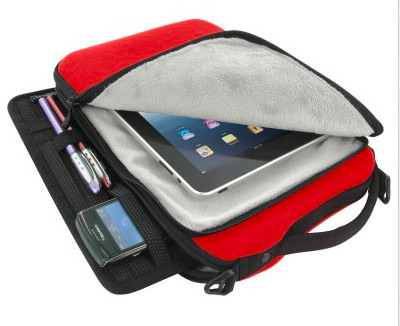
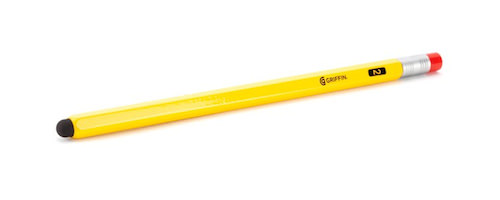
 A few examples of Kensington sale items: Keyboard Case, Pen/Stylus combo and Folio Cases -

Kensington Keyboard Case

Kensington pen stylus


Kensington Folio

Think Geek is offering up to 50% off on very long list of fun Geek items. We only found the iCade in the sale list that is directly for the iPad. Other things, like Star Trek uniforms and fun gadgets have a variety of discounts, not really iPad related though.

Icade

SkinIt has a nice discount  on skins for iPads and iPhone – 25% off using the PRESIDENT25 code:

Skin It Presidents


We will post more as we find them! 

Share